Krit
KritKrit guide
Plan today. Time what you do. Carry the rest.
Krit keeps one list for today, puts a timer on every action, and quietly moves whatever you didn't finish into tomorrow. It runs on Mac, Windows and iPhone. All three read the same account, so a timer you start at your desk is still running on your phone.
Install
Mac
Drag Krit into Applications and open it. Until the app is signed, macOS blocks the first launch: open System Settings → Privacy & Security, click Open Anyway next to Krit, and confirm. You only do this once.
Windows
Run the .msi installer. Krit appears in the Start menu, with an icon in the notification area while it runs.
iPhone
Krit for iPhone is in early access. Ask for an invite.
There's nothing to set up. Krit connects to your account at api.krit.app as soon as it opens.
Today
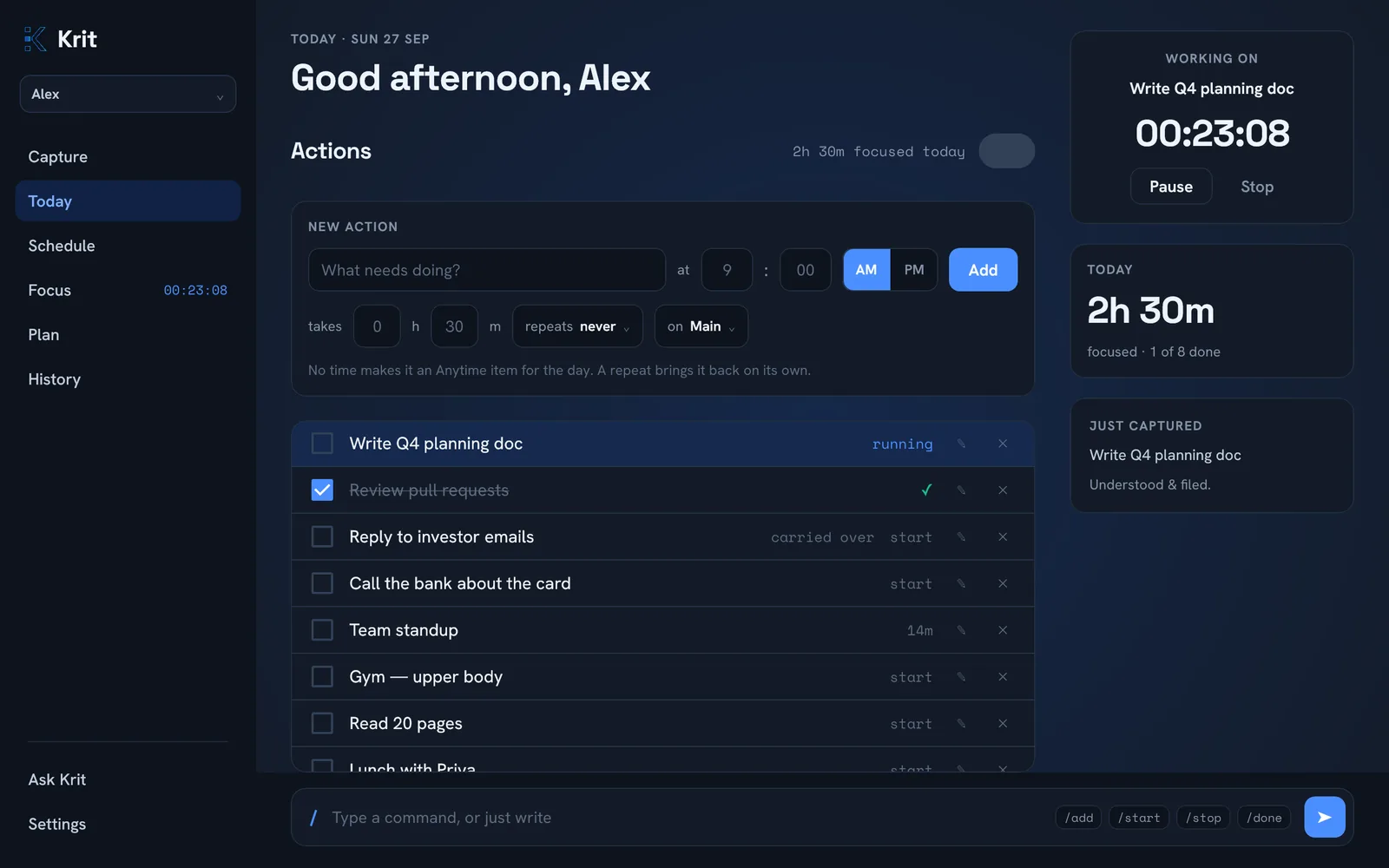
Today is the list you work from. It holds everything you haven't finished, plus anything planned for today and today's repeating actions.
- Add an action. Type it into New action and press Add. Give it a time to put it on the timeline, an estimate (takes 30m), a repeat, or a schedule. All of these are optional.
- Tick it off. Click the box. Finished actions stay on the list, struck through, until the day ends.
- Leave it unfinished. It comes back tomorrow marked carried over, and keeps coming back until you tick it or delete it. Nothing silently drops off.
- Edit or delete with the ✎ and ✕ on each row.
Repeating actions work the same way. A daily action you ticked yesterday comes back unticked this morning. An action dated for a later day waits until that day.
Timer & Focus
Click any action on Today to start its timer. The row turns blue and the clock starts. Click it again to stop. Every stretch of time is saved against that action, so pausing and resuming adds another session rather than losing the first.
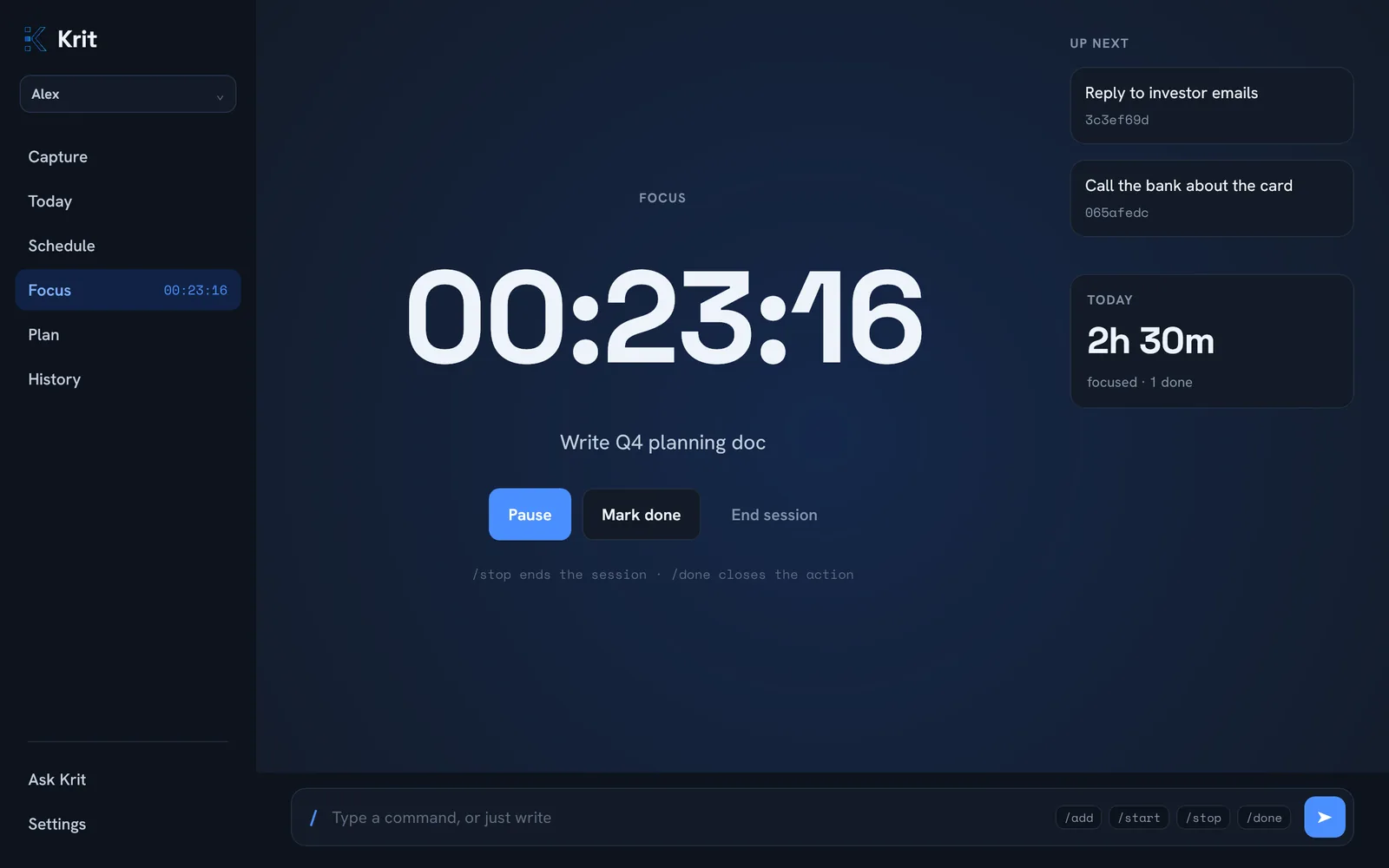
- Pause saves the time so far and keeps the action in focus. Resume picks it up again.
- Stop or End session saves the time and clears the focus.
- Mark done stops the timer and ticks the action off in one go.
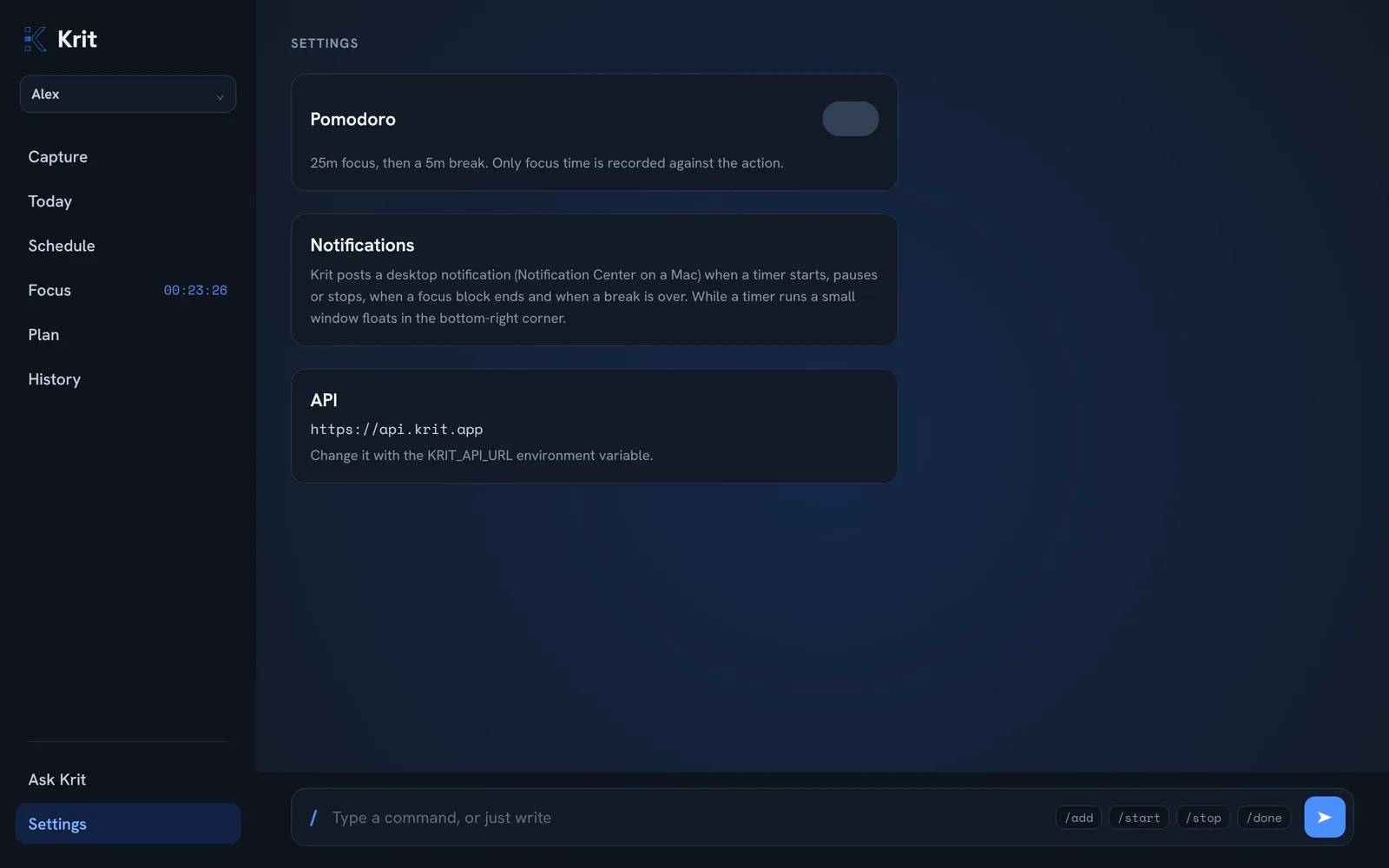
- Pomodoro (the switch next to Actions, or in Settings) turns the timer into 25 minutes of focus followed by a 5-minute break. Only focus time is logged. The dots show how many of today's four blocks are done.
- While a timer runs, a small timer floats in the bottom-right corner of your screen, so you can see it from any app.
Schedule
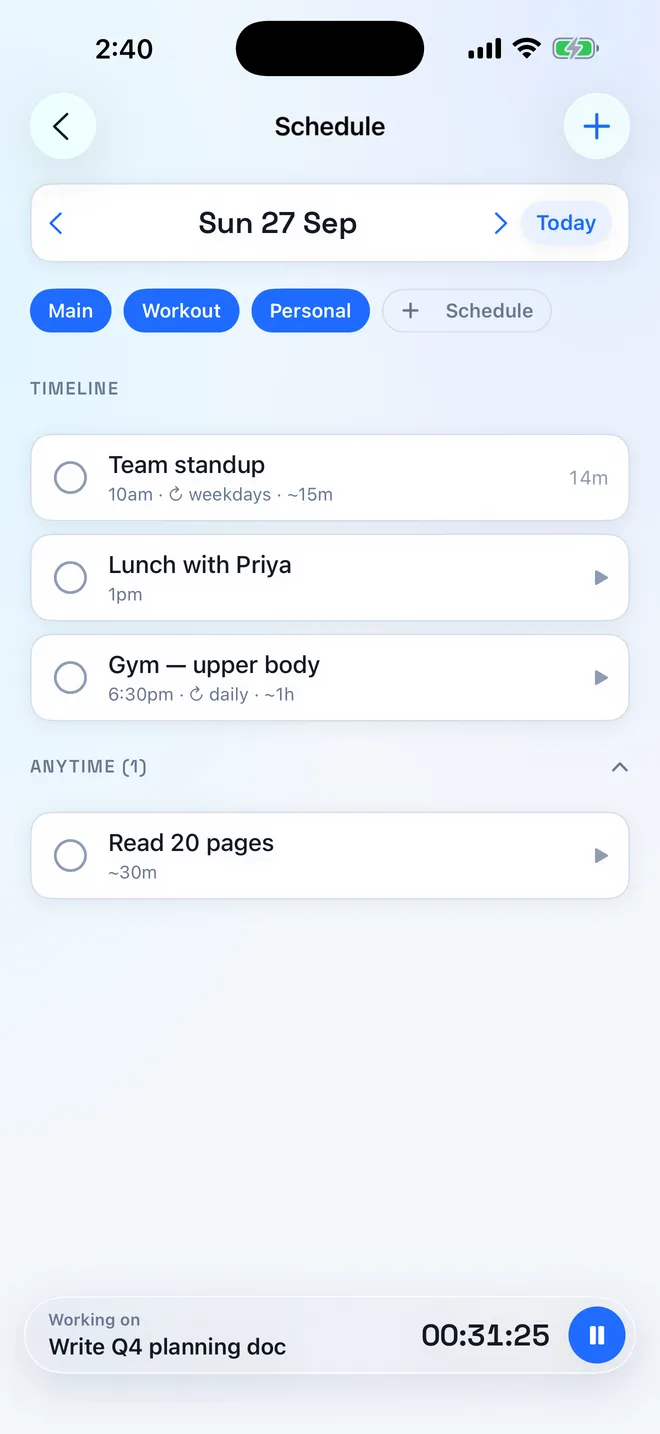
Schedule shows one day at a time: the timeline of actions with a clock time, then an Anytime group for the ones that belong to the day but not to an hour. Use ‹ › to move between days and Today to jump back.
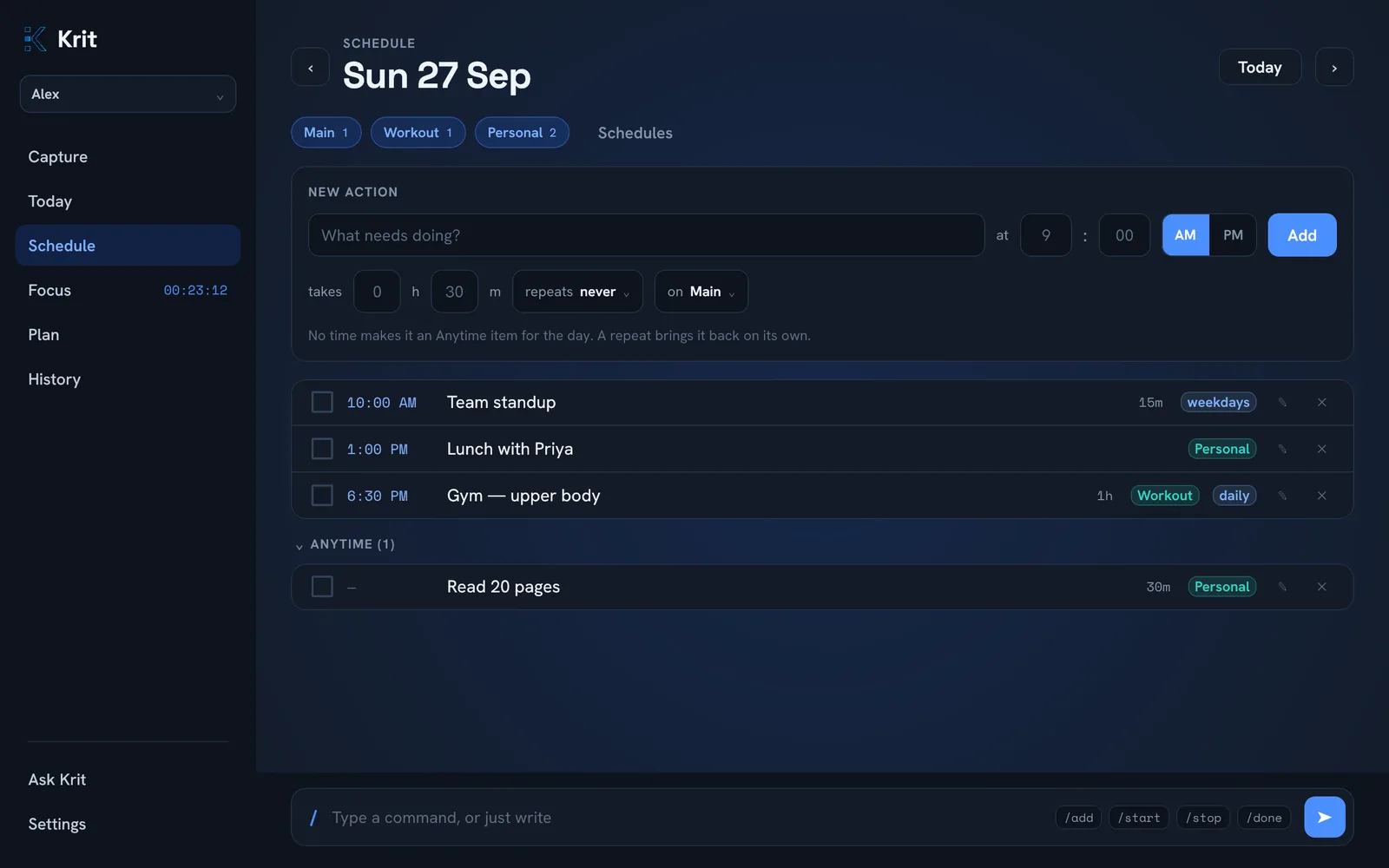
- Schedules are named lists such as Workout or Personal. Click a chip to show or hide its actions, or + Schedule to make a new one. Deleting a schedule moves its actions back to Main. Nothing is lost.
- Repeats: every day, every weekday, chosen days of the week, a date each month, or every few days.
- Estimates show on the row (1h). Hover them to see the full wording.
History
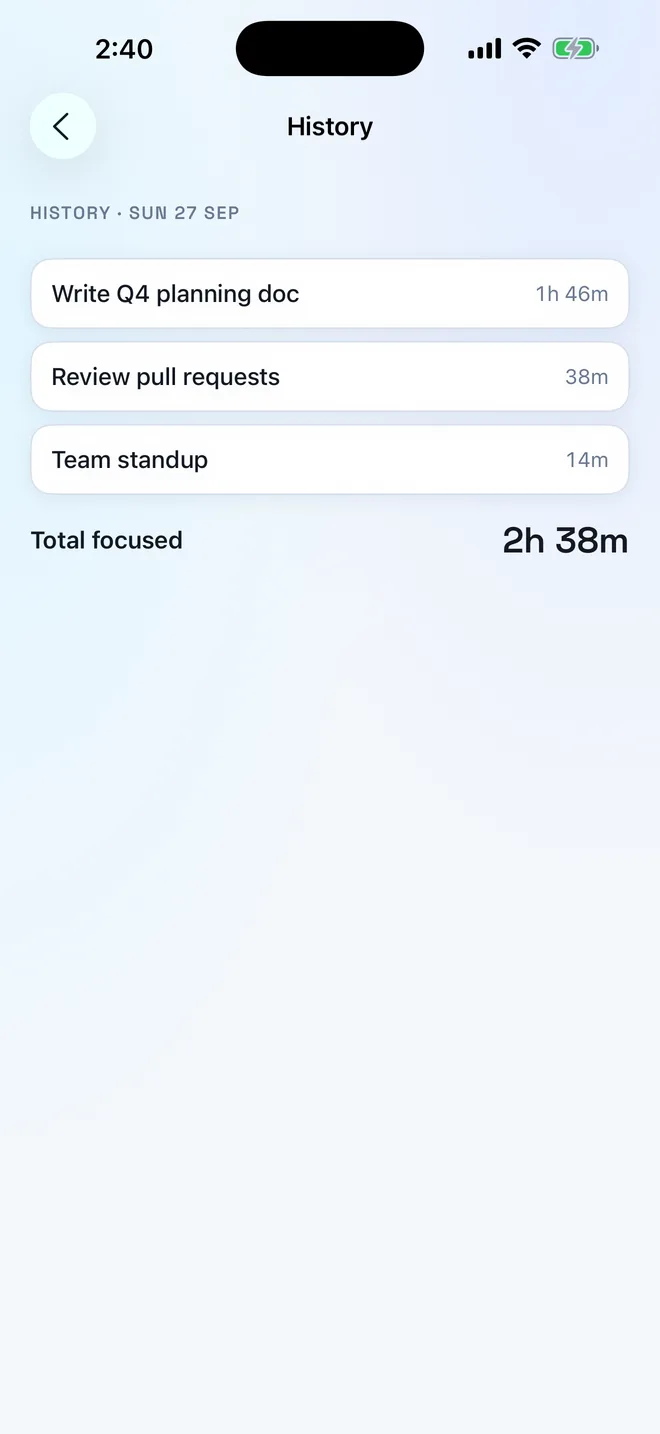
History adds up today's time by action, biggest first, with the day's total underneath. It includes the timer that's still running.
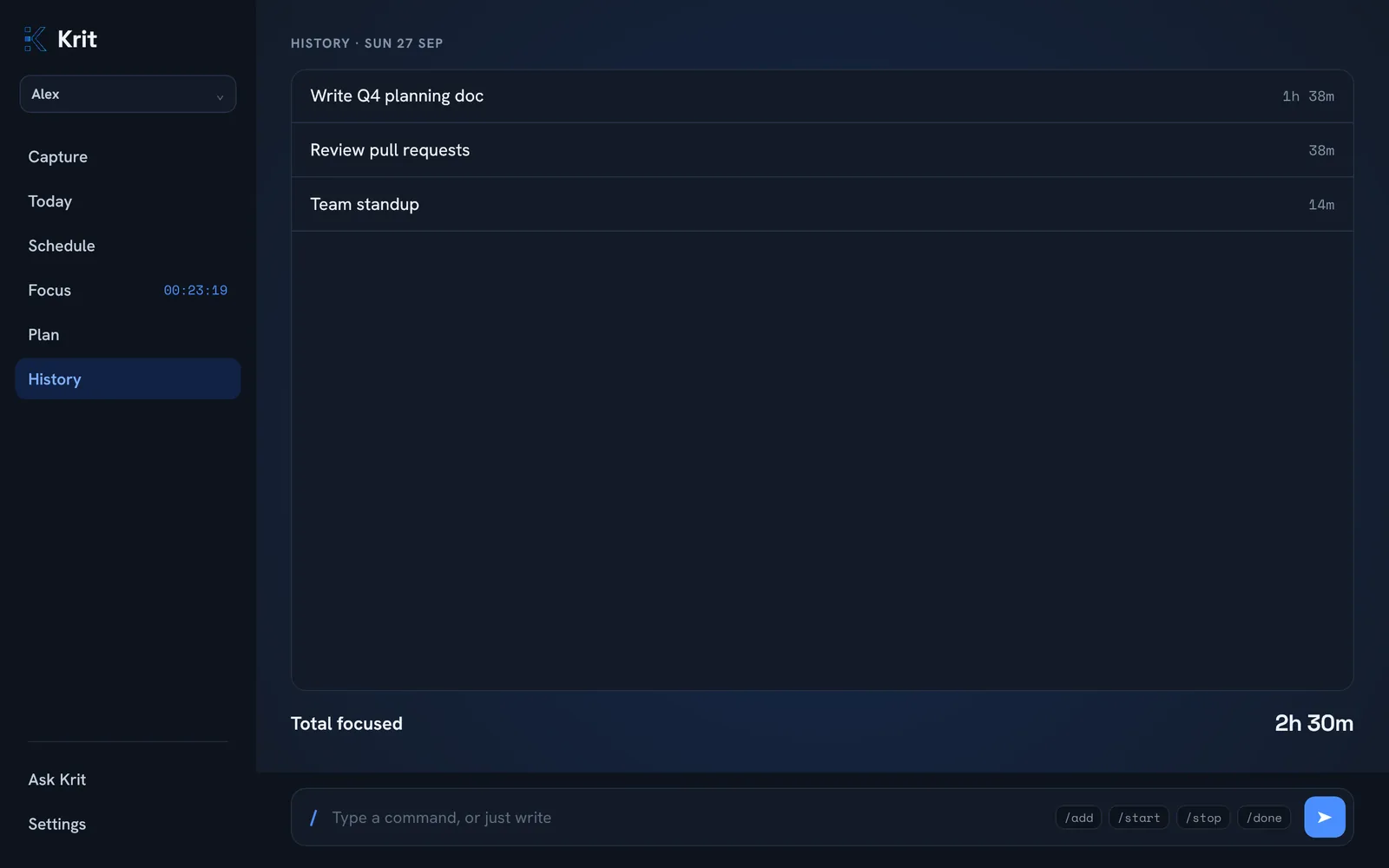
Capture & commands
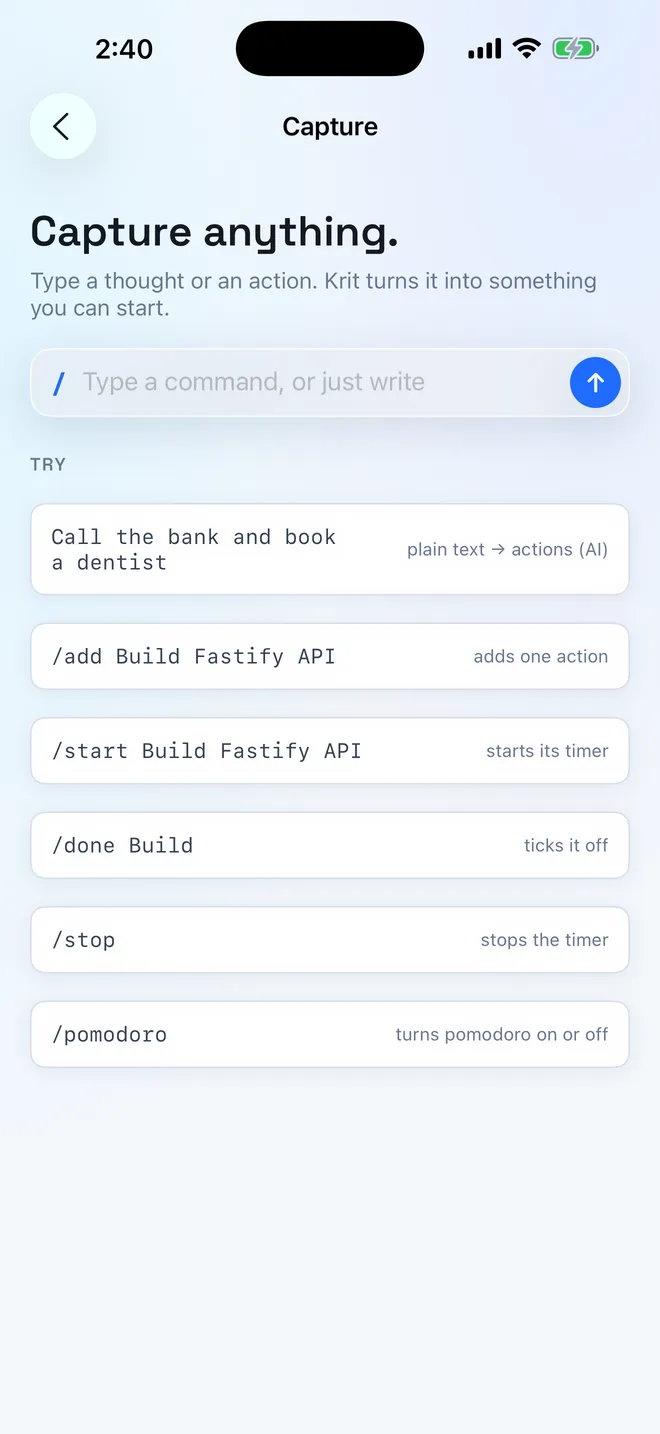
The bar at the bottom of every screen takes plain sentences and short commands. Write the way you think: “call the bank and book a dentist” becomes two actions. Start with / to be exact.
Call the bank and book a dentist | Plain text. Krit reads it and adds one action per task. |
/add Build the Fastify API | Adds exactly that action, no interpretation. |
/start Fastify | Starts the timer on the first unfinished action that matches. |
/stop | Stops the timer and logs the session. |
/done Fastify | Ticks the matching action off. |
/delete Fastify | Deletes it, with its logged time. |
/pomodoro | Turns pomodoro on or off. /pomodoro Fastify turns it on and starts. |
/start, /done and /delete match a piece of the title, and prefer unfinished actions. So /done workout ticks today's workout, not one you finished last week.
Notifications
Krit tells you when a timer starts, pauses or stops, when a focus block ends and when a break is over.
- Mac: they appear in Notification Center. If they don't, open System Settings → Notifications and allow Script Editor, which macOS uses for Krit until the app is signed.
- Windows: a Krit notification slides in above the taskbar.
- iPhone: Krit asks for permission the first time you start a timer. Pomodoro alerts still arrive when your phone is locked.
On iPhone
Krit for iPhone has the same Today, Schedule, Focus, History and Capture screens, running on the same account. Start a timer on your Mac and it's ticking on your phone, and the other way round.
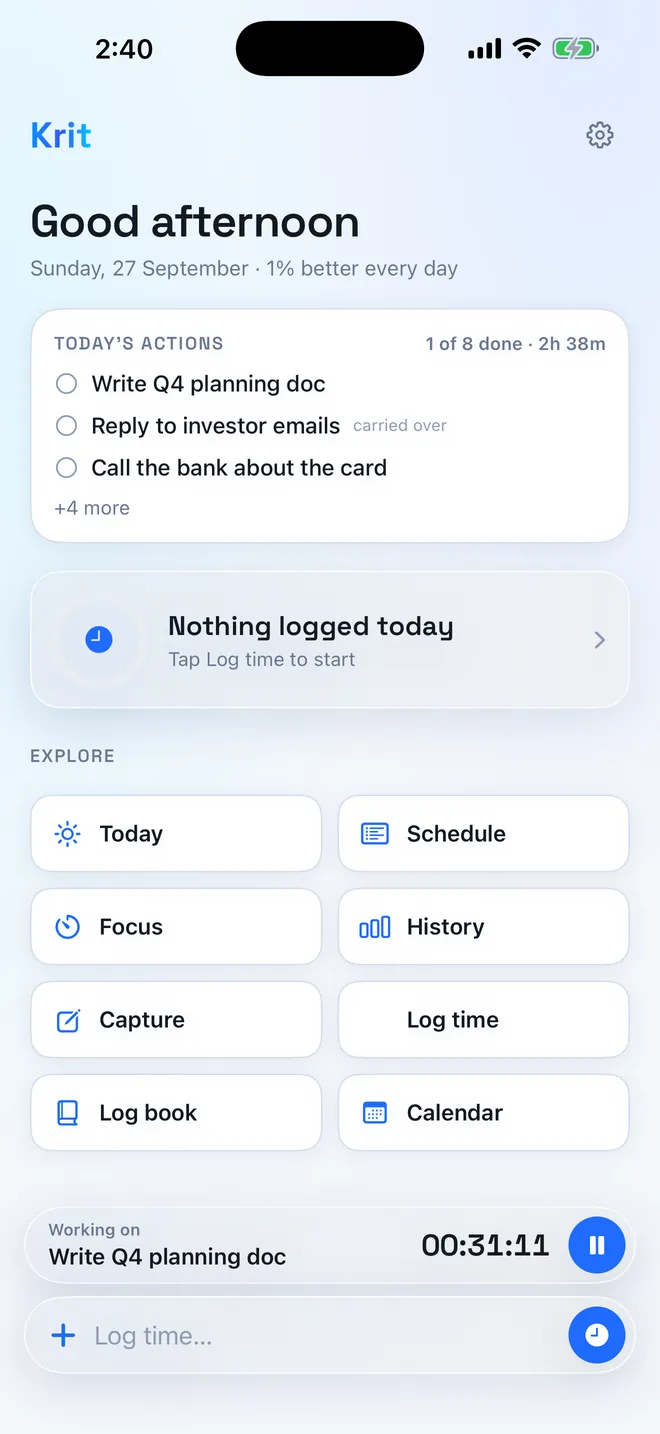
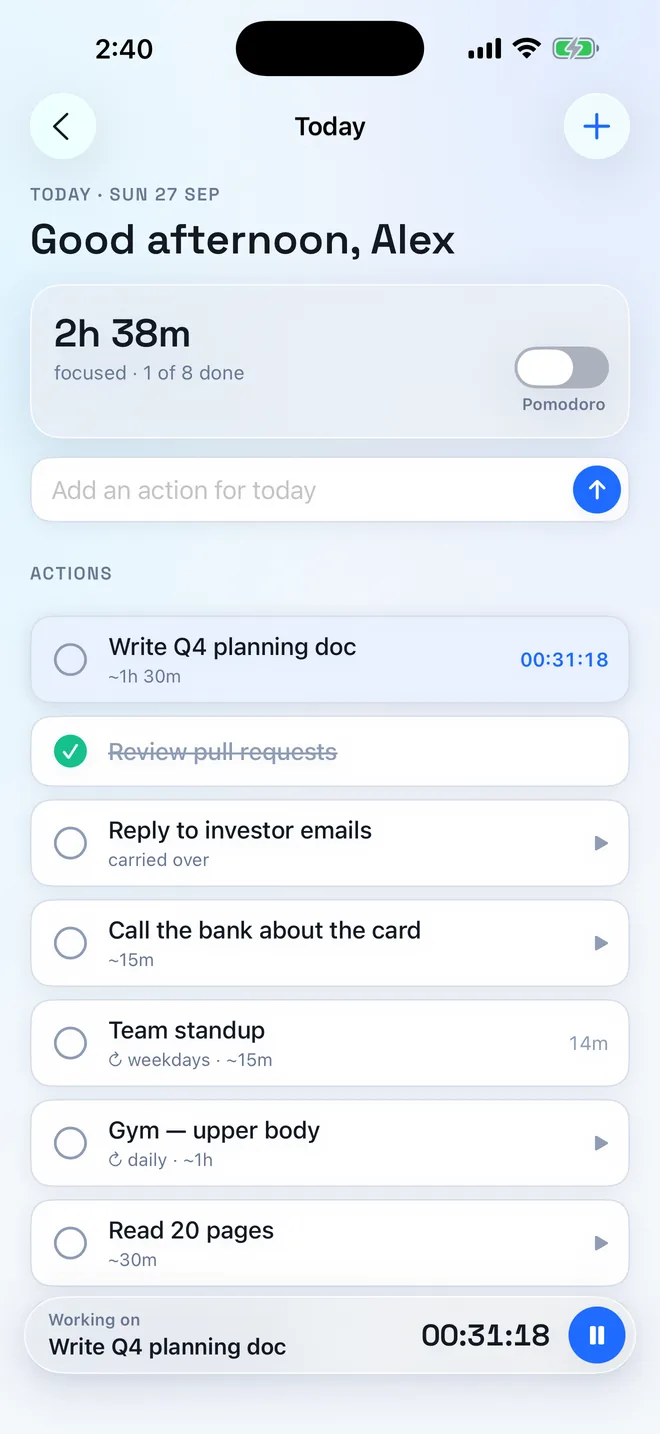
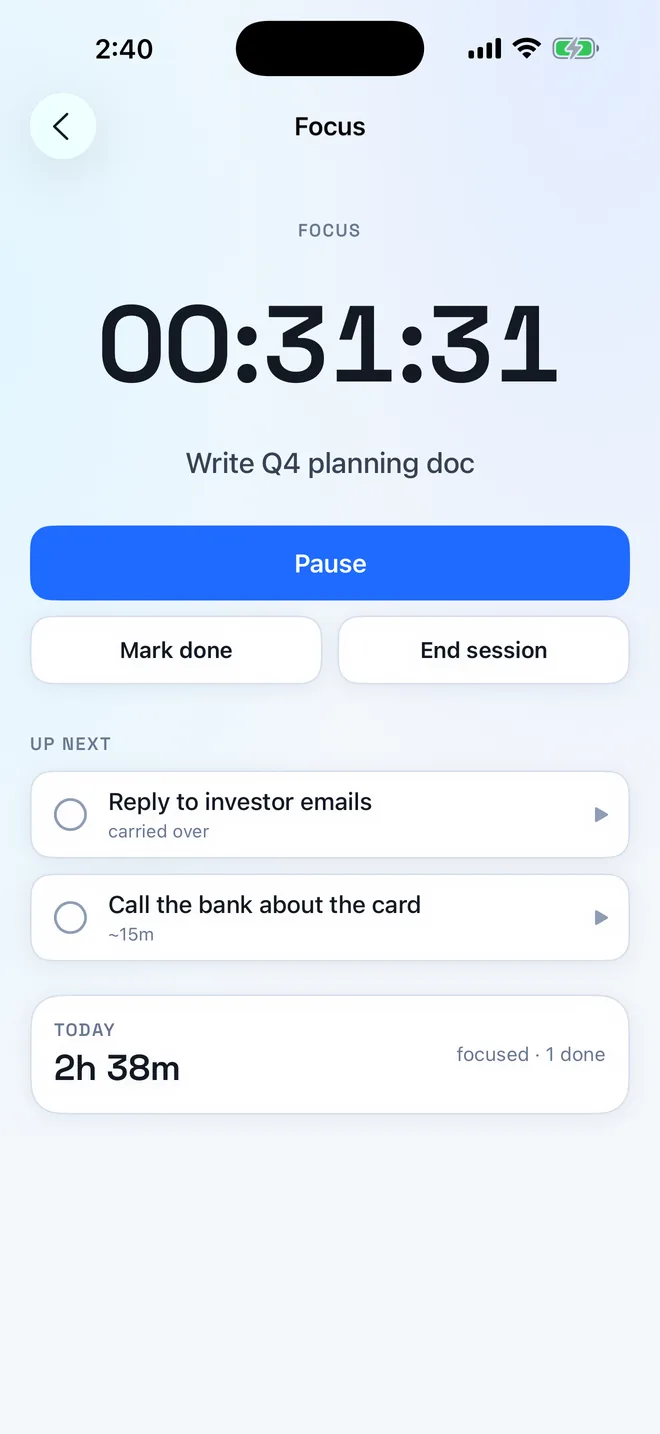
- Tap a row to start or stop its timer. Tap the circle to tick it off.
- Swipe left on an action to edit or delete it, or press and hold for the same options plus Start timer.
- The timer bar at the bottom follows you around the app. Tap it to open Focus, or use its button to pause.
- + opens the full form: day, time, estimate, repeat and schedule. Leave the day off and the action stays on Today until it's done.
- Log time and Log book are an iPhone extra: they record time after the fact (productive, distraction or rest) and keep it on the phone.
Questions
- Where is my data?
- Your actions, schedules and timer sessions live in your Krit account, so every device shows the same day. The iPhone Log book is the exception: it stays on the phone.
- What happens at midnight?
- Today starts over. What you ticked yesterday goes, what you didn't comes along marked carried over, and today's repeats appear. If Krit is open overnight, this happens on its own.
- I closed Krit with a timer running.
- The timer keeps going. It lives in your account, not in the window, so it's still running when you reopen Krit on any device.
- Where are Plan and Ask Krit?
- Coming next: goal → plan → schedule, and a chat that can act on your day.